
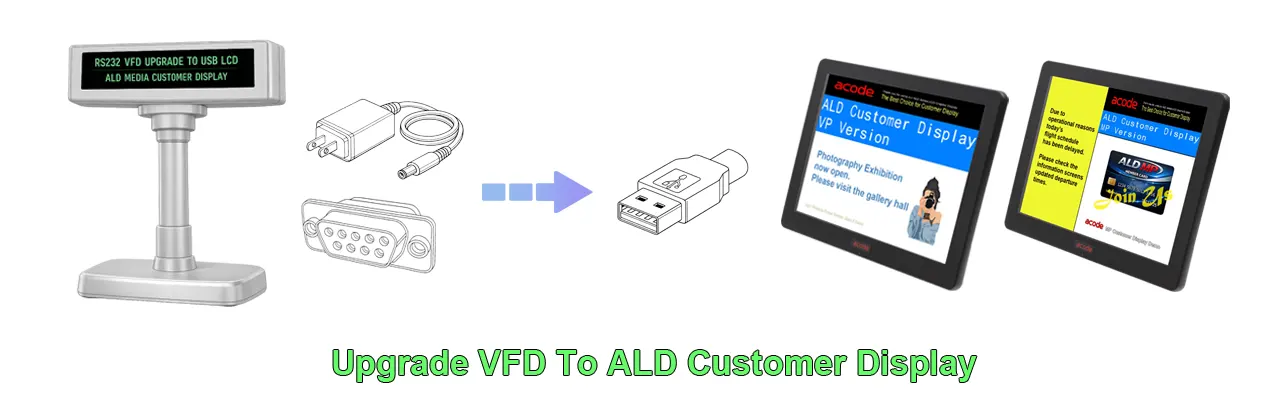
Why Upgrade to ALD Multimedia LCD Instead of Changing Your POS System ?
The Smarter Way to Modernize
Many shop owners are reluctant to spend thousands of dollars on a new POS system just to replace their old green or blue VFD text displays. It’s actually quite simple—you don’t need to replace your POS software at all.
Plug‑and‑Play Modernization
ALD multimedia LCD displays are designed to replace traditional VFD screens.
- VFD Emulation: Your POS software can still “communicate” with the new display just like it did with the old VFD screen.
- Instant Upgrade: The LCD display can display the same text, presented in a beautiful format, and you can add colors, logos, and even videos.
- Affordable: The price of a USB LCD display is only a fraction of the cost of a complete system upgrade.
Why Not Replace the Whole POS System ?
- Data Migration Hassles: Migrating inventory and customer data often leads to errors.
- Training Time: Staff must relearn workflows, slowing down service.
- Hidden Costs: A new system may lock you into subscription services or higher transaction fees.
Practical Upgrade Options
- Option 1: VFD Analog LCD Monitor → Cost-effective, retains existing software.
- Option 2: Set Up a Second Monitor → Suitable for technically proficient users with dual-screen POS software.
- Option 3: Complete System Replacement → Only consider if your current software is outdated or no longer supported.
Quick Comparison
| Goal | Change POS System | Buy ALD LCD |
|---|---|---|
| Budget | ❌ Expensive (new software + hardware) | ✅ Cheap (one‑time) |
| Setup Time | ❌ Days (migration + training) | ✅ Minutes (plug + utility) |
| Look & Feel | ✅ Modern | ✅ Modern (logos, color, media) |
The Bottom Line
If your POS software still works well, don’t fire a cannon at a small problem. Upgrading to ALD Multimedia LCD is the easiest, most cost‑effective way to modernize your checkout counter — no disruption, just instant visual impact.
Step‑by‑Step Transition
- Unplug the old VFD (usually via a serial port/COM interface).
- Connect the new LCD display via the USB interface.
- Install a setup Acode Display Utility.
- Map the virtual COM port to your POS setup.
- Custom Layout—Split the screen to display text, and use media areas to display logos, Photo, Video.
- Test Transactions – Your POS system can send data instantly, without reprogramming.
⚠️ Tip: Check your POS’s emulation mode (Epson ESC/POS, Aedex, UTC) before buying to ensure compatibility.