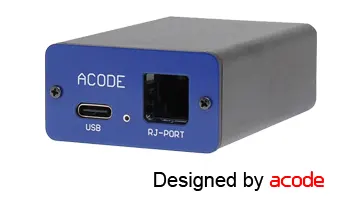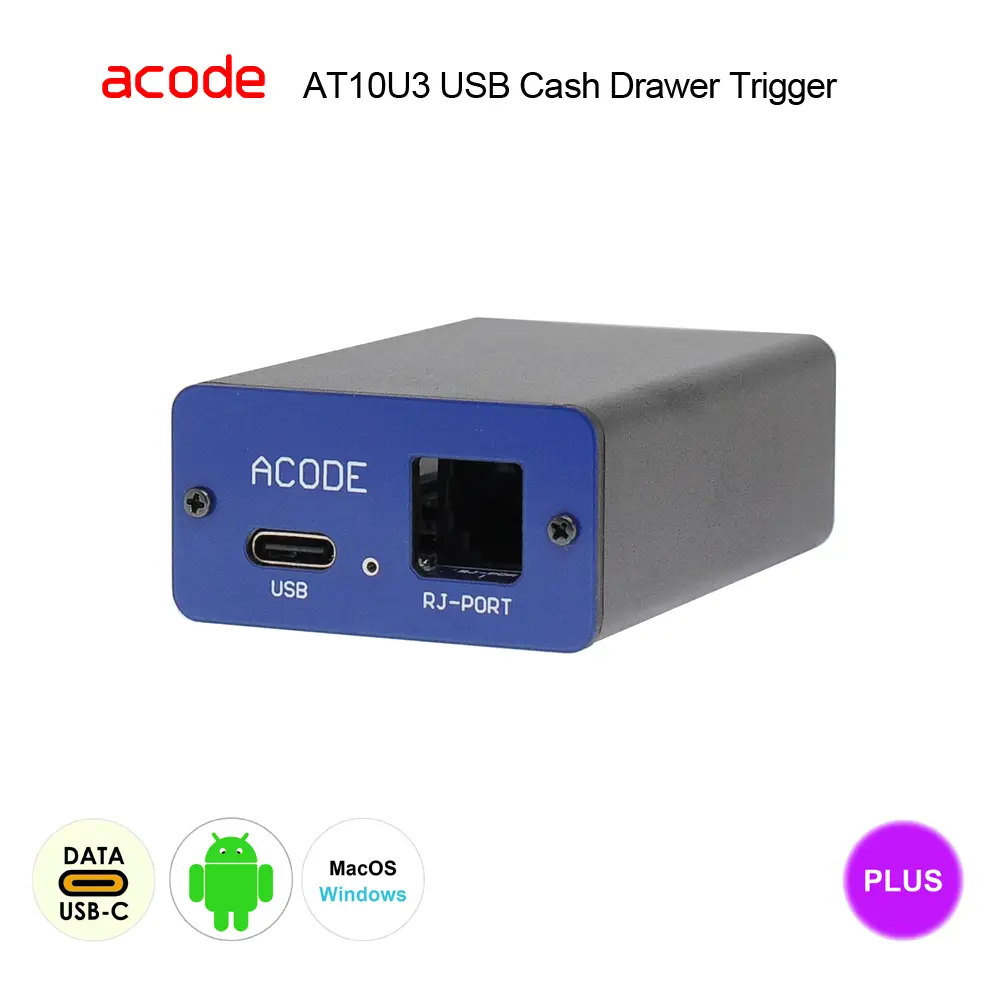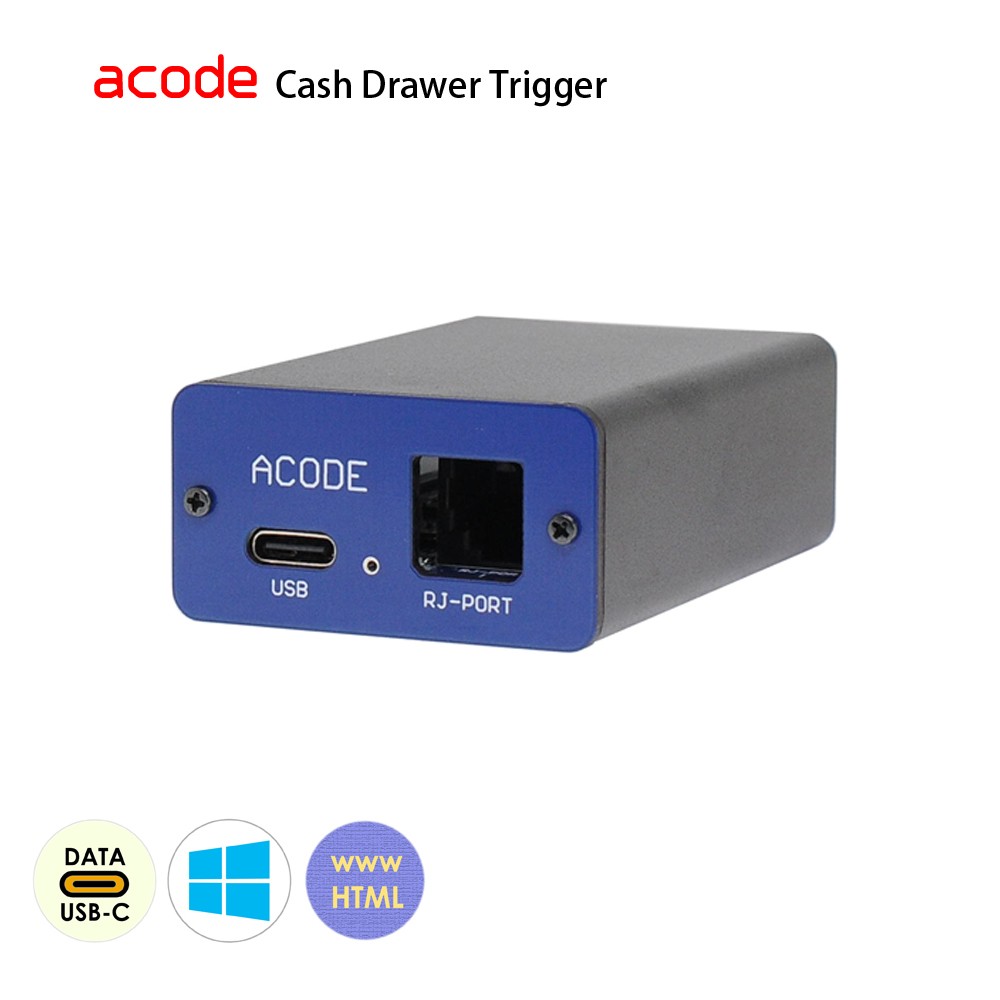
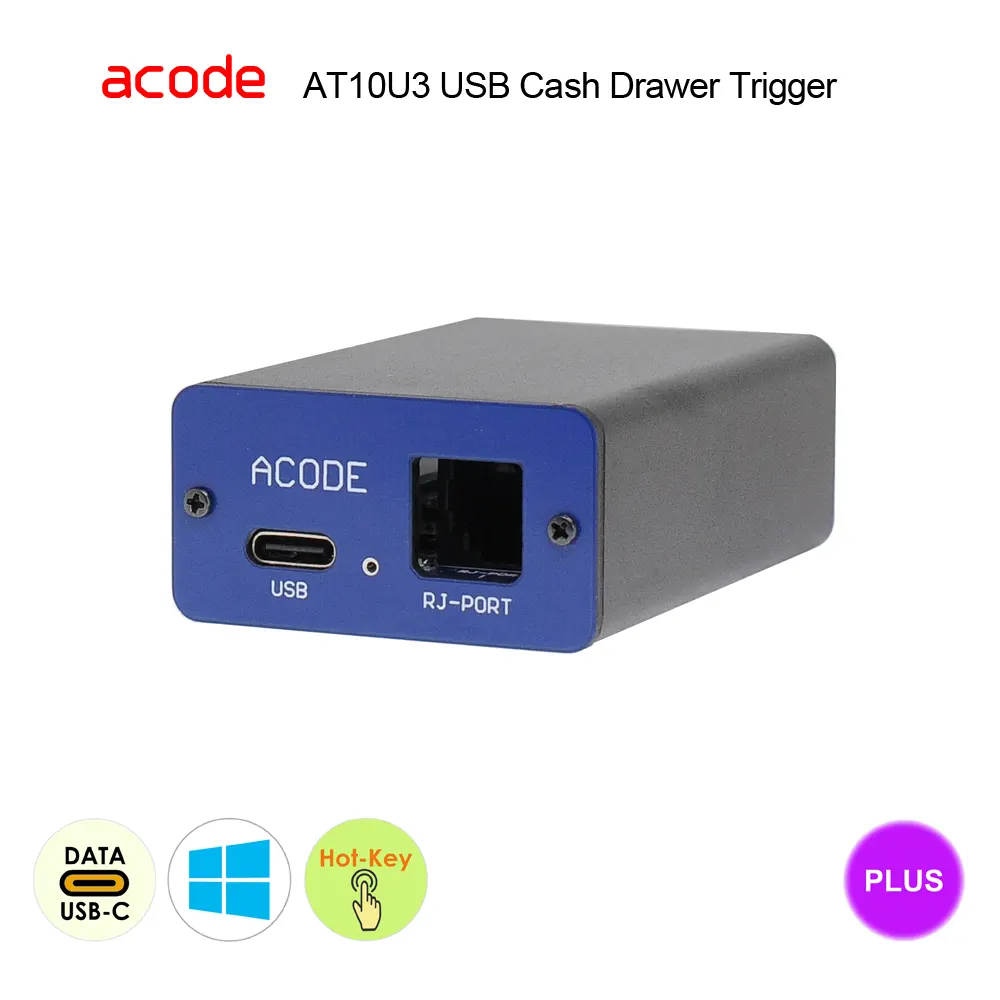
AcodeTigger – AT10U3‑82102‑00000 USB Cash Drawer Trigger — Hotkey Utility for Windows
AcodeTigger – AT10U3 USB Cash Drawer Trigger with Hotkey Utility
The AT10U3‑82102‑00000 delivers instant drawer release via custom hotkeys, seamless USB‑C virtual COM connectivity, and USB‑powered simplicity. Rapid installation ensures user‑ready setup, while Windows 10/11 compatibility guarantees smooth integration for POS environments. Reliable, efficient, and hotkey‑optimized performance.
*This cash drawer trigger is designed with user‑friendly simplicity, offering quick and hassle‑free installation.
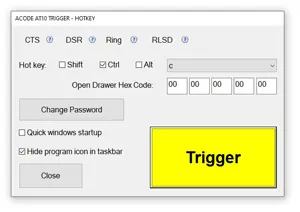
- Hotkey example F9, Ctrl+Shift+D enables drawer opening
- Custom hotkeys allow instant shortcut drawer release
- USB‑C interface provides virtual COM port connectivity
- USB powered design, no external supply required
- Rapid installation process, simple user‑ready hotkey setup
- Windows ready with native 10, 11 compatibility
AT10U3-82102-00000 USB Cash Drawer Trigger – Hotkey ** Detailed technical information is available in the product specifications. * Please check that your device is compatible with our trigger. If you’re unsure or the requirements aren’t clear, feel free to ask us for assistance.
Additional :
- International Delivery : ship worldwide via Express Air / Regular Air / Surface
- Prices in USD
- We will NOT ship to P.O. Box
Specifications
AT10U3 : USB Cash Drawer Trigger
|
Model # |
AT10U3-82102-00000 USB Cash Drawer Trigger Specifications |
| Function : | Drawer is hotkey‑triggered when the user presses the assigned shortcut. |
| Interface : |
|
| Operating Apps : | AcodeTigger-Hotkey |
| Trigger Mode : | Hotkey Utility (Windows) |
| USB Port Power : | DC 5 V, < 500 mA (no external power supply required) |
| Cash Drawer Requirements : |
|
| OS Support : | Windows 11, 10 |
| Cable : | USB Type-A to Type-C x1 |
| Casing : | Aluminium |
| Colour : | Black |
| Weight : | 60 g (net, without cable) ±15% |
| Dimensions : | 70 × 45 × 24 mm (D × W × H) |
| * Specifications are subject to change without prior notice. |
FAQs
AT10U3 82XX Series USB Cash Drawer Trigger App for Windows (Hot-Key Version)

This Windows utility offers a simple installation process and includes an auto-start feature for seamless operation. Users can easily configure their preferred hotkey to trigger the opening of the USB-connected cash drawer, streamlining point-of-sale workflows with customizable convenience.
We’re here to help—contact our team anytime with your questions.
AT10U3 82XX Series USB Cash Drawer Trigger App Installation Guide (Hot Key)

Download and Extract Files
- Download the utility package from the official source.
- Unzip the downloaded folder to a location of your choice. update download password at download page
https://www.acode.com/en/download/acode-at10u3-usb-cash-drawer-trigger-hotkey-utility-2026/
Copy and Launch the Utility
- Copy the extracted files to your preferred directory.
- Use administrator mode run the utility by double-clicking the executable file.
Login and Access Configuration
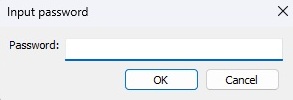
- When the program starts, enter your login password.
- You will be directed to the configuration screen.

Set Your Hotkey
- In the configuration screen, choose your desired hotkey combination to open the cash drawer.
- Click Apply to save your settings.

Test the Hotkey
- Press the configured hotkey to confirm that the cash drawer opens correctly.
We’re here to help—contact our team anytime with your questions.
How to check cash drawer pin assignment ?
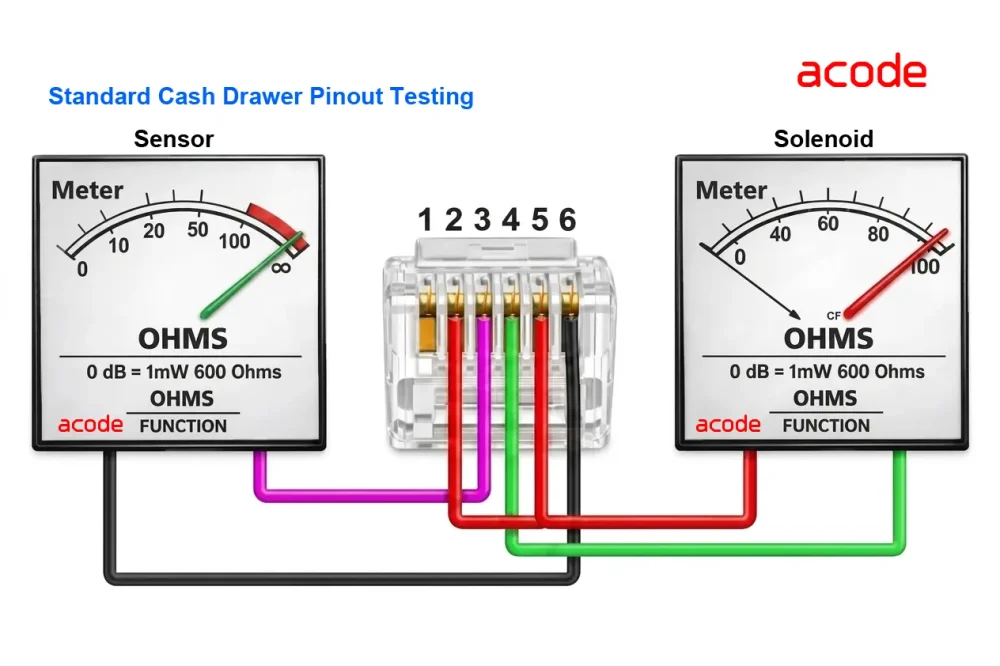
1. (Right Meter) Check the Red Pin 2 and Pin 5 , Green Pin 4 wires common on the solenoid shows a slight variation in readings.
2. (Left Meter) Check with the Pink Pin 3 and Black Pin 6 wire shows a significant difference between cash drawer open and closed.
- This cash drawer routine supports standard Epson and Star POS printer pin configurations, as well as all Acode cash drawer triggers.
- Important: You must verify the your cash drawer’s solenoid voltage and pin assignment before connecting it to your receipt printer or POS terminal or Acode cash drawer triggers.

How to auto start program in Windows ?
Using the Startup Folder
- Press Windows Key + R to open the Run dialog.
- Type
shell:startupand click OK to open your personal folder. - Find the app you want on your Start menu or desktop, right-click it, and select Open file location.
- Copy the app’s shortcut and paste it into the Startup folder.
Using Windows Settings
- Open Settings from your Start menu.
- Go to Apps and click on Startup.
- Turn the toggle On or Off next to any listed app to control whether it runs when you sign in
For more product information, please refer to the link below:
frequently-asked-questions-cash-drawer-trigger-with-application
Download Utility
How to auto start program in Windows ?
Using the Startup Folder
- Press Windows Key + R to open the Run dialog.
- Type
shell:startupand click OK to open your personal folder. - Find the app you want on your Start menu or desktop, right-click it, and select Open file location.
- Copy the app’s shortcut and paste it into the Startup folder.
Using Windows Settings
- Open Settings from your Start menu.
- Go to Apps and click on Startup.
- Turn the toggle On or Off next to any listed app to control whether it runs when you sign in
Related products
-

AcodeTigger – AT10U3‑82102‑03000 USB Cash Drawer Trigger — Hotkey Utility with Code Access for Windows
Read more -
AT10U3‑00102‑00000 USB Cash Drawer Trigger — Cross‑Platform Integration
Read more -

AT10M3‑85313‑40000 MOBILE Battery‑Powered Bluetooth Cash Drawer Trigger — Loyverse POS Android Code Control
Read more -

AT10B3-00201-00000 BLUETOOTH Cash Drawer Trigger for Cross‑Platform
Read more